Mac window manager: snapping, tiling or scrolling?
Split screen on Mac, window snapping, tiling or scrolling: what macOS already does, where it runs out, and how to pick a Mac window manager.
Key takeaways
- macOS can already tile two or three windows without any extra app, using drag-to-edge or the Window menu.
- Built-in split screen runs out when a task needs five or more apps, because halves and quarters give you only two to four places.
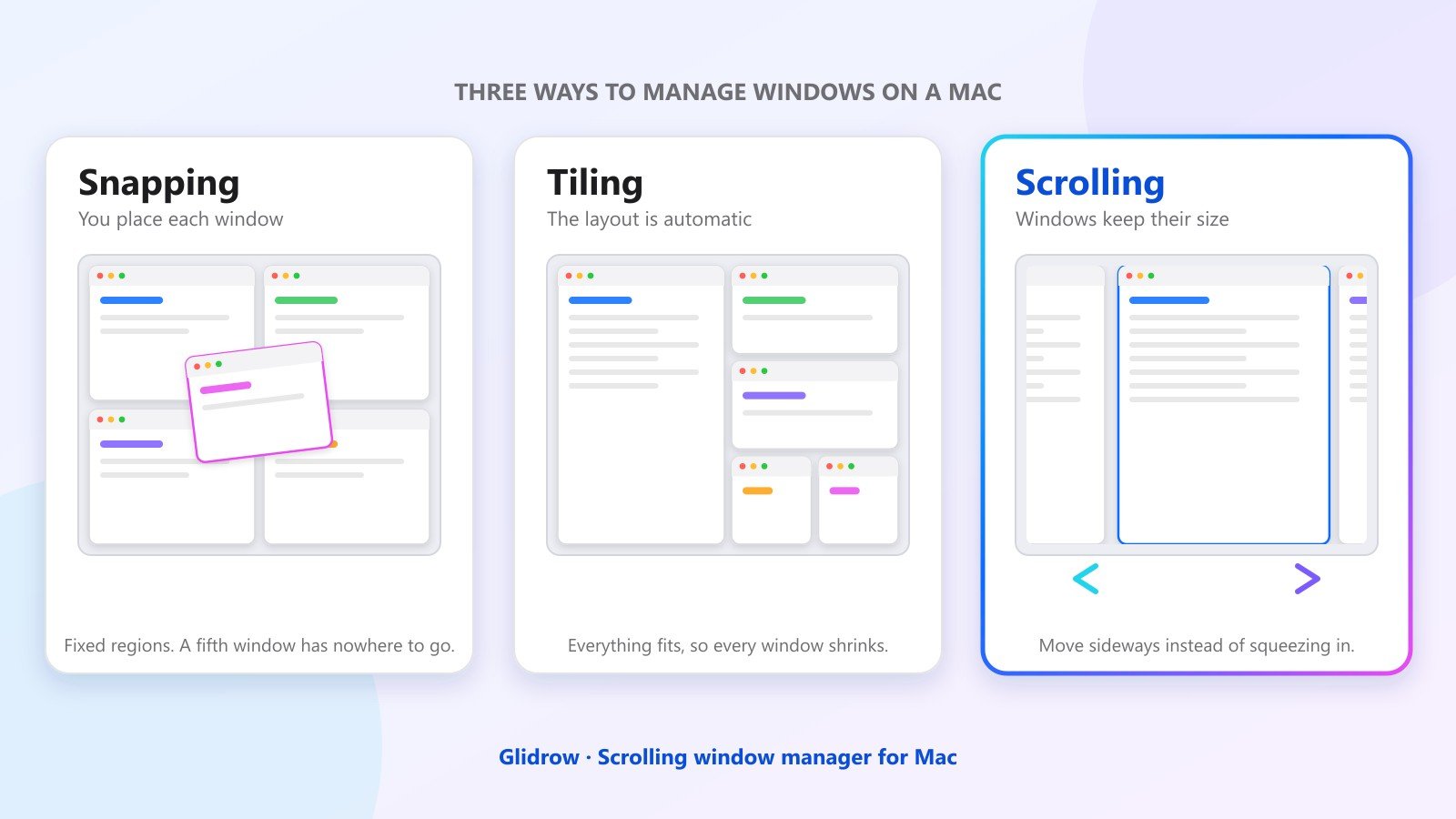
- Snapping puts you in control, tiling arranges automatically, and scrolling keeps every window at a comfortable size.
- Count the apps you really use for one task before choosing, then test the tool on your own work for a few days.
Most people go looking for a Mac window manager after the same small irritation: two windows are fine side by side, but the third one never fits. Before installing anything, it helps to know what macOS already does, and what the three common styles of window manager actually change.
What macOS already gives you
Newer versions of macOS have built-in window tiling, so you may not need any extra app to split the screen on a Mac. Older versions have the green-button Split View, which puts two apps side by side in full screen. The menu names change a little between macOS versions, so check the Window menu on your own Mac.
To tile windows with what is already installed:
- 1Drag a window to the left or right edge of the screen, or to a corner, and release it there to tile it.
- 2Or open the Window menu in the menu bar and choose Move & Resize, then pick a half, quarter or other layout.
- 3Use the keyboard shortcuts shown next to those menu items. Apple lists them in its tiling guide, for example Fn-Control-Left Arrow for the left half.
- 4If dragging a window to the top of the screen opens Mission Control, you can turn that off in Desktop & Dock settings.
Where split screen on a Mac runs out
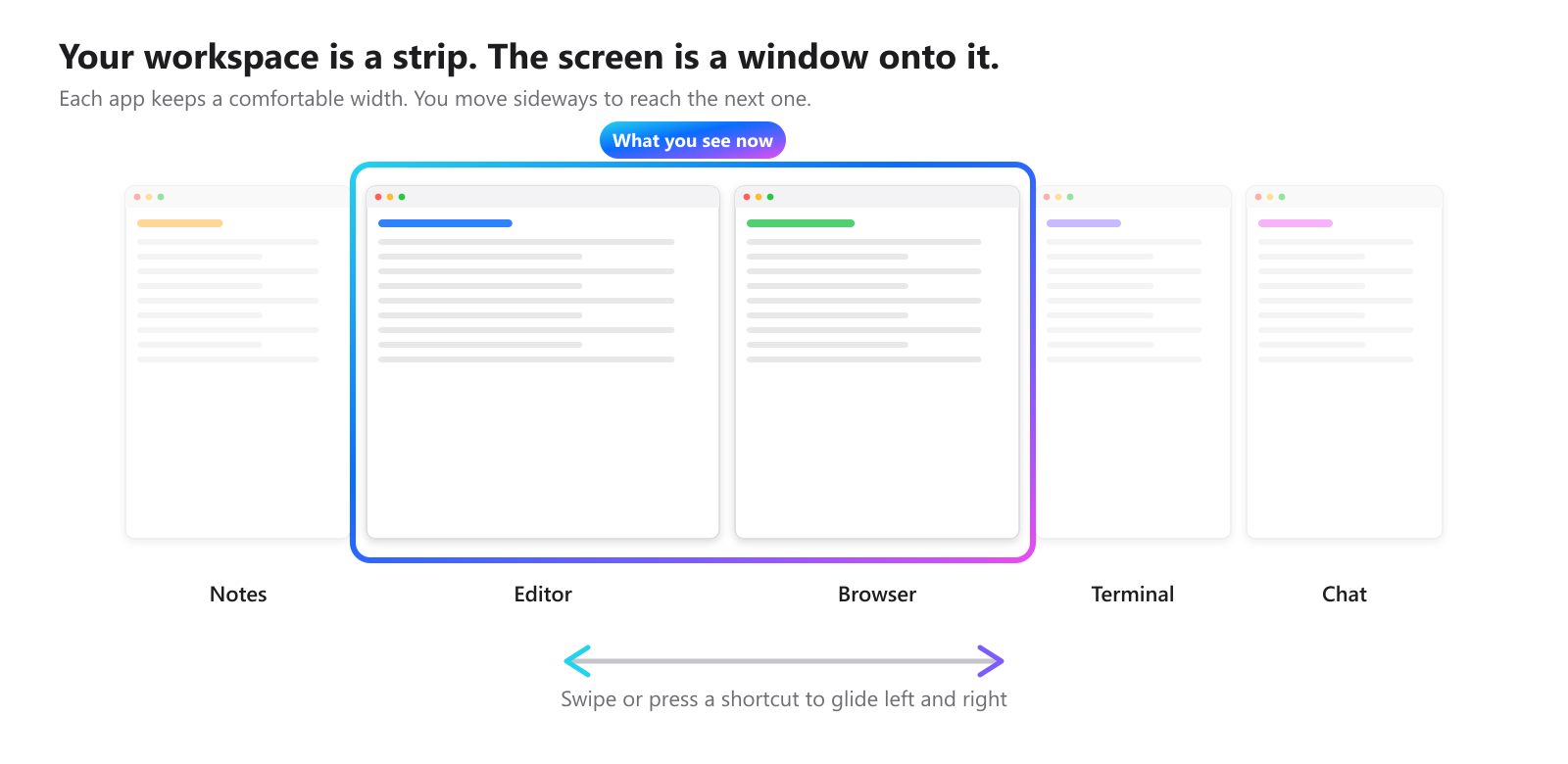
The limit shows up when the number of windows you use is more than the number of slots on the screen. Halves and quarters give you two to four places. A real task often has five: editor, browser, terminal, notes and chat.
Then you start doing the manual work again. Move one window out of the way, find another, resize it, and repeat when the task changes. A window manager is useful only if it removes that repeated work, so that is the test to apply to each style below.
- Two apps side by side: built-in tools are usually enough.
- Three or four apps that you keep in view together: snapping or tiling helps.
- Five or more apps across a whole workday: you need something that does not depend on fitting everything on one screen.
Snapping: you place each window
Snapping tools give you fixed regions such as halves, thirds and quarters, usually through keyboard shortcuts or by dragging to an edge. You stay in control, and nothing moves unless you ask. That predictability is the reason many people like them.
The trade-off is that every window still lives inside one screen. Open a new app and you decide again where it goes, and which window it should cover.
Tiling: the layout is automatic
A tiling window manager arranges windows for you so that they fill the screen without overlapping. Searches for a tiling window manager for Mac usually come from people who like this idea from Linux and want it on macOS.
Tiling works well with two or three windows. As you add more, each tile gets smaller, so a code editor or a document gets squeezed into a narrow box. Sidebars collapse and lines wrap, which is the same problem as before, just handled automatically.
Scrolling: windows keep their size
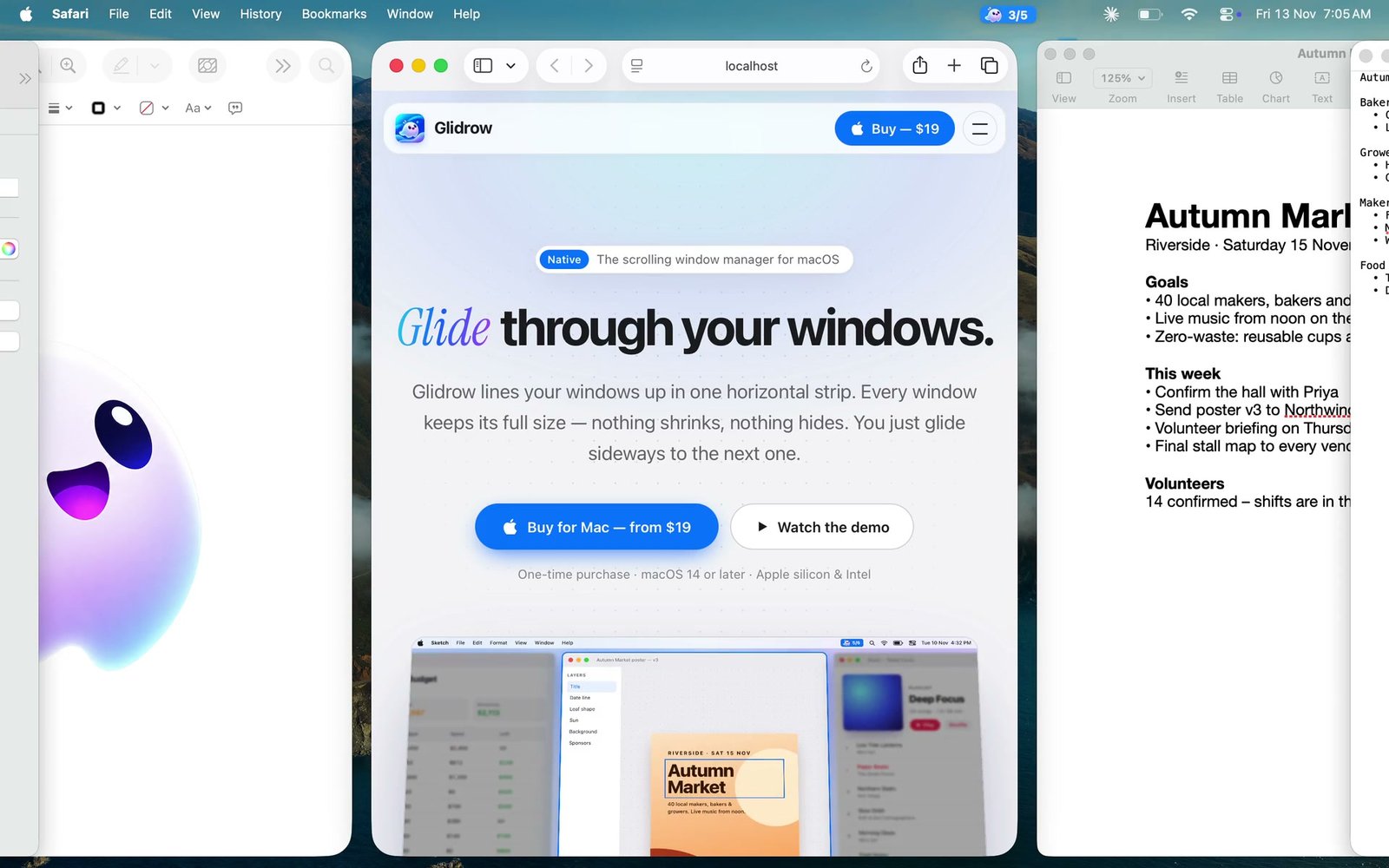
A scrolling window manager takes a different route. Windows sit in one horizontal strip, each at a comfortable width such as one-third, one-half or two-thirds of the screen. The display is a viewport onto that strip. When you need another app, you move sideways instead of shrinking everything to make space.
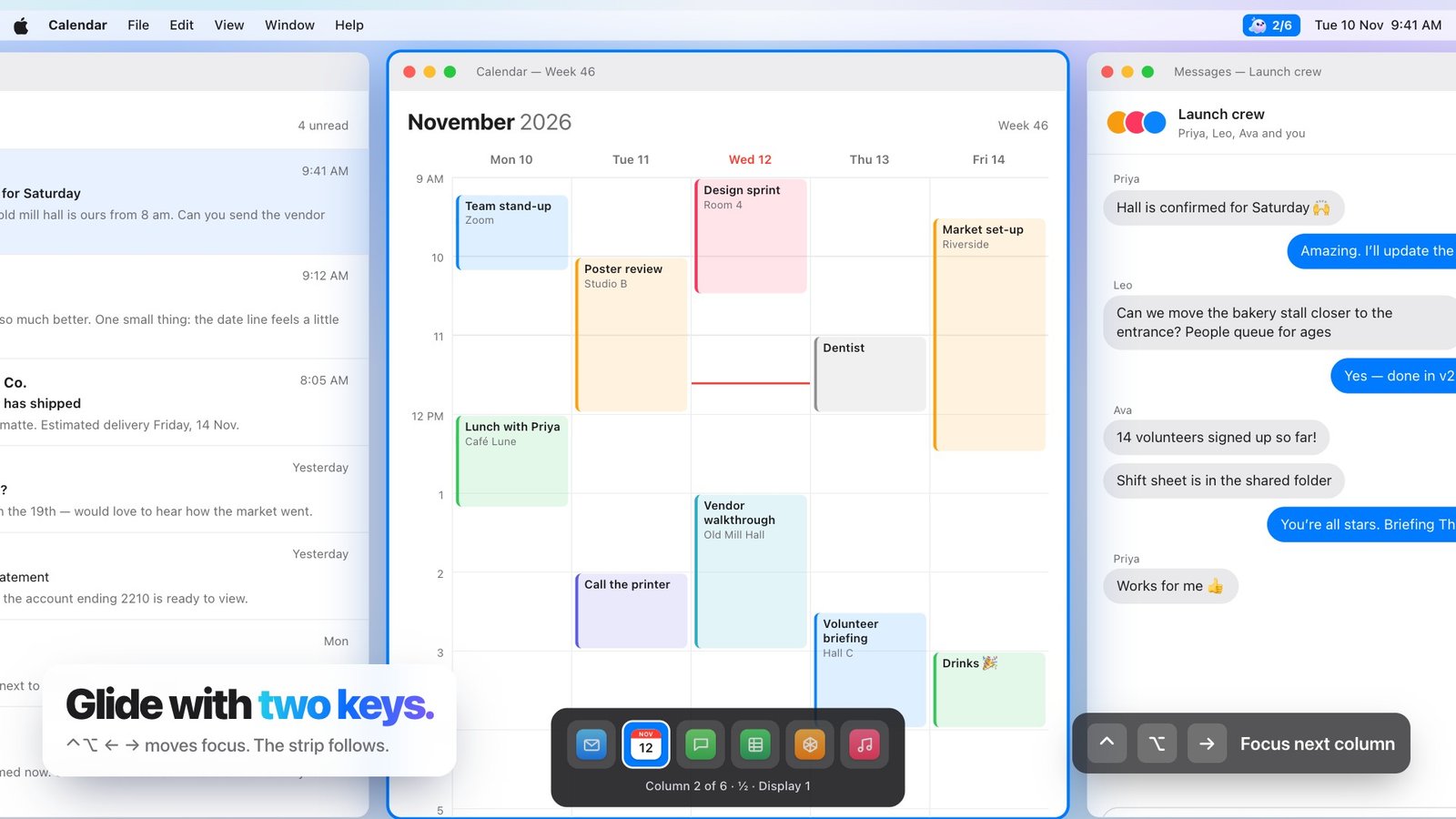
This is the approach Glidrow takes. It is a menu-bar app for macOS 14 or later. Focus moves through the strip with Control-Option and the arrow keys, Control-Option-R cycles a column through its common widths, and the overview shows the whole strip when you lose your place. You can save an arrangement as a workspace and restore it later.
Snapping, tiling and scrolling side by side
Here is the same comparison in one place. The right choice depends on how many apps you use together, not on which style sounds more advanced.
| Style | How windows are placed | Works best for | Main trade-off |
|---|---|---|---|
| Built-in macOS tiling | Drag to an edge, or use Window > Move & Resize | Two or three apps | Limited to halves and quarters |
| Snapping app | You choose a region by shortcut or drag | Keeping three or four apps visible with full control | Every window must still fit on one screen |
| Tiling manager | Layout is automatic and fills the screen | Short sessions with a few windows | Windows shrink as you open more |
| Scrolling manager | Windows sit in a strip at set widths; you move sideways | Five or more apps in long working sessions | You do not see every window at once |
Which Mac window manager should you pick
Start from how you actually work, not from the feature list. Count the apps you really use for one task, and note whether you need them visible together or only one shortcut away.
- Two or three windows: try the built-in macOS tiling first.
- Fixed regions and full control: a snapping app is a small, simple step up.
- Five or six apps that keep hiding behind each other: a scrolling strip is worth testing, because it solves that specific problem.
Common questions
How do I split screen on a Mac with three apps? Built-in tiling gives you halves and quarters, so three apps means one half and two quarters. Beyond that, a window manager helps.
Does macOS have a built-in window manager? Newer versions of macOS include window tiling, which handles basic layouts such as halves and quarters.
Can I use more than one approach? Yes. Many people use the built-in tools for quick two-window jobs and a window manager for longer work with many apps.
Whatever you choose, test it for a few days on your real work. A tool that fits will feel quiet after a day or two, because you stop thinking about where windows are.